Playing My First Demo Visual Guide
This guide will step you through the process of playing your first demo. Before we can play our demo, we have to configure Seismovision and tell it where to find the game. We are going to use a Call of Duty 2 demo in this guide. The process for other demos is similar in steps.
1. Open Seismovision
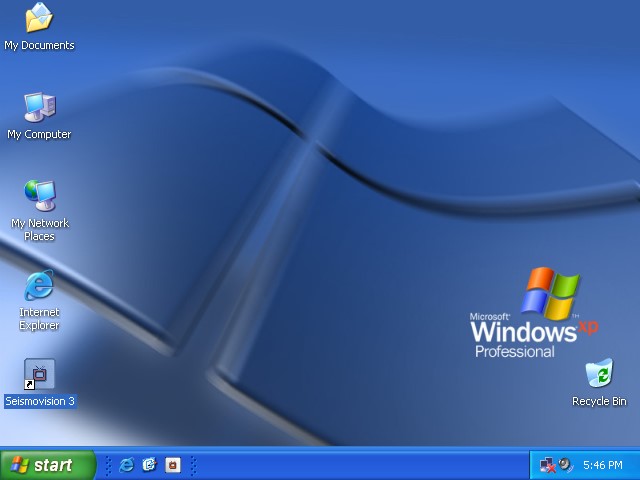
Double click on the Seismovision icon on the desktop. There are many ways to open Seismovision, this is not covered in this guide.
2. Registering or Free Use
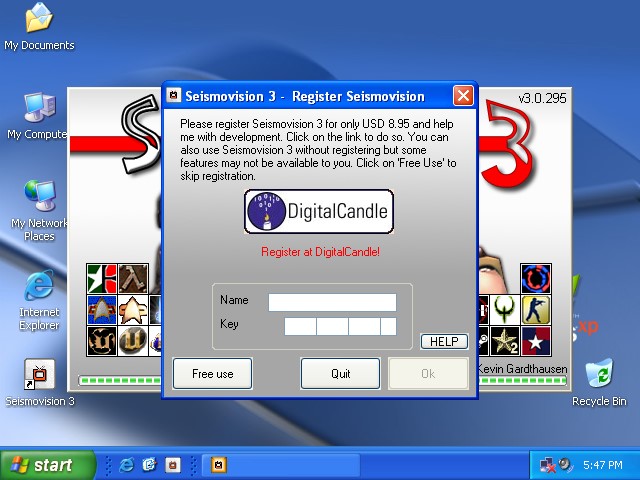
The nag window comes up when you are using the 'free' version of Seismovision 3. Click on the button 'Free Use' to skip registration. The button becomes available after 5 seconds.
3. The Main Menu
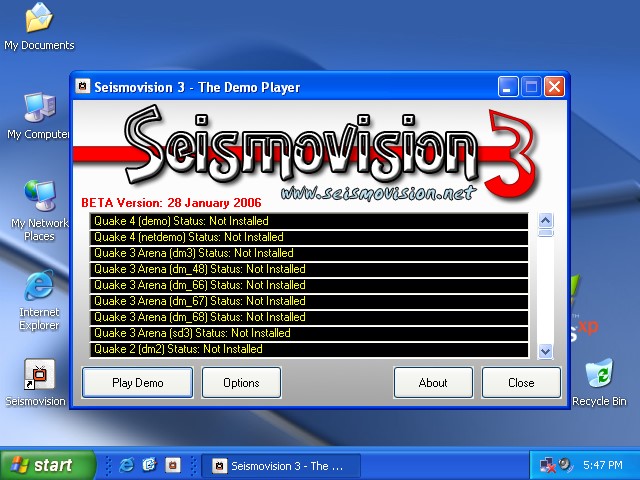
This is the main menu of Seismovision. As Seismovision is not configured for any game to this point, all status lines are yellow. Click on 'Options'.
4. Finding the right options
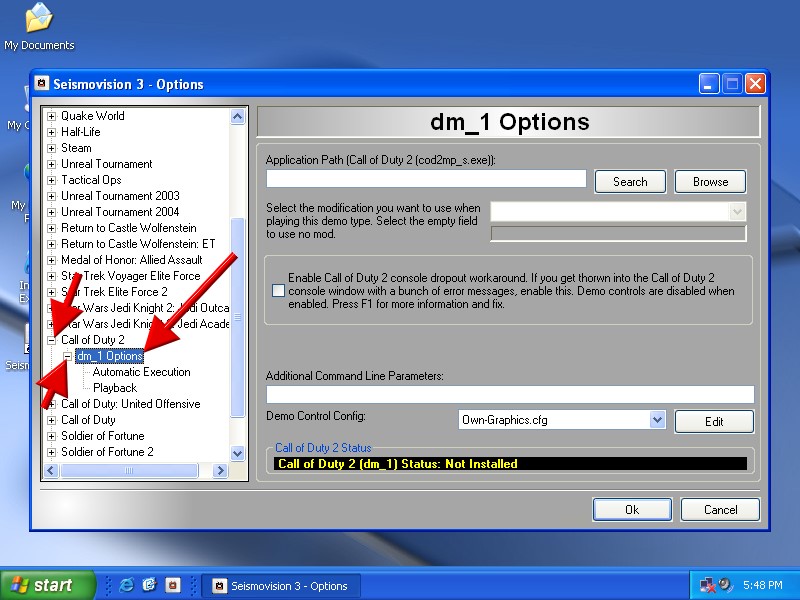
As we want to play a Call of Duty 2 demo, we have to go to the Call of Duty 2 options. We expand the node by clicking the plus (+) sign next to the game name. Now we click on 'dm_1 Options'. Your screen should like similar to the one above.
5. Browsing
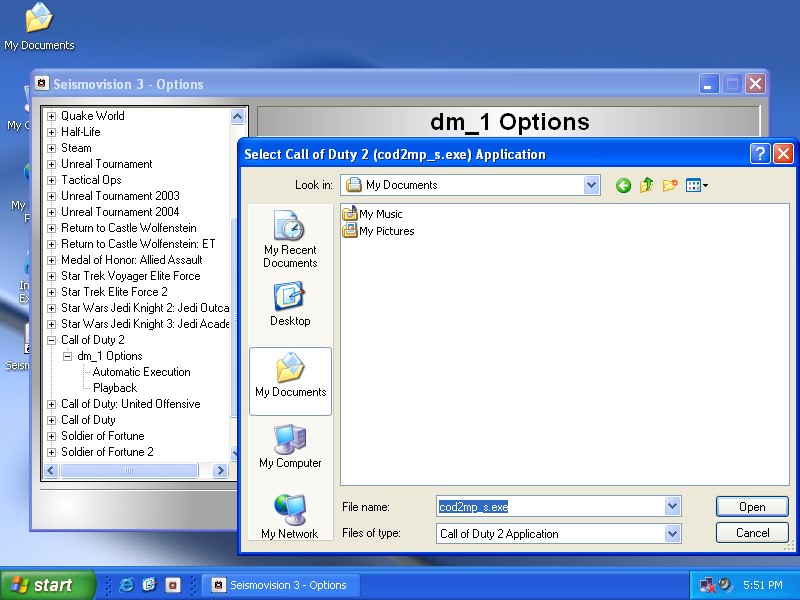
You can either click on 'Browse' or 'Search' to locate your game. In this guide we are going to use 'Browse'. Click 'Browse' and locate the installation directory of Call of Duty 2.
6. Select the Game Application
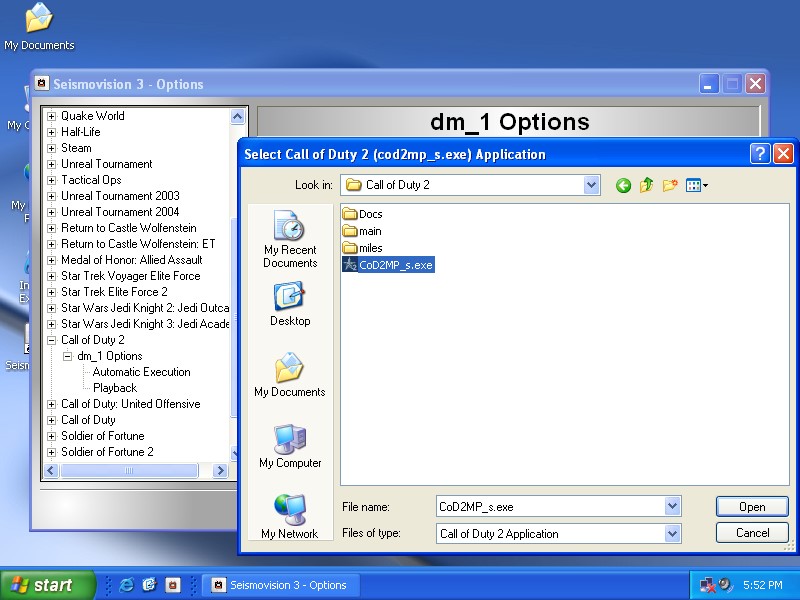
Select the game application. Normally selected by default. Click 'Open'.
7. Confirming
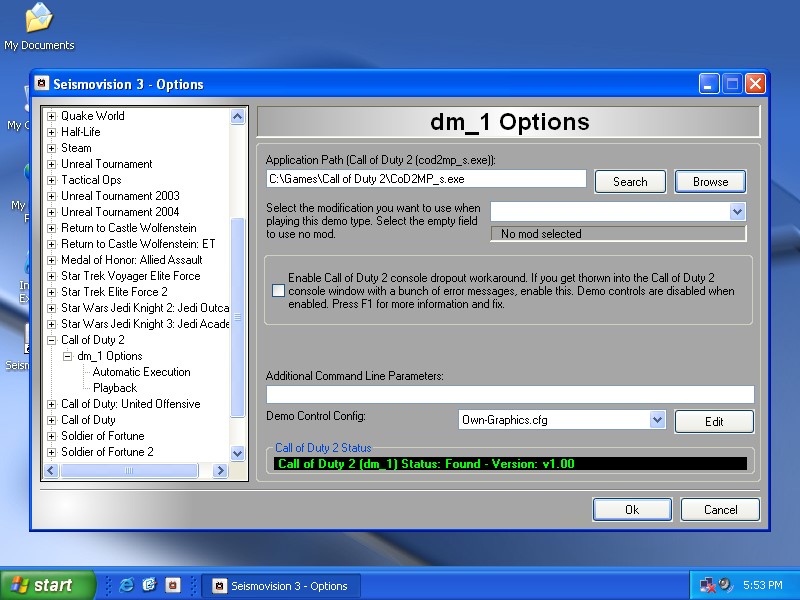
When correctly selected, the screen will look similar to the one above. Under 'Call of Duty 2 Status' you will see a green line of text confirming 'Found'. If you selected a wrong game, this line would appear in red. Go back to step 5 and try again. Click 'Ok' to save your options.
8. Checking Status
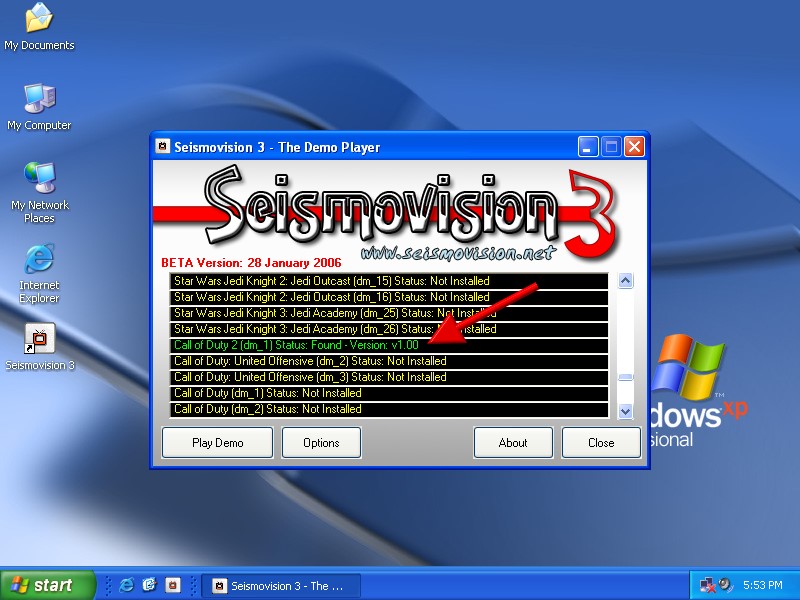
Call of Duty 2 now appears green in the status lines, you may have to scroll down to see this. Click 'Close'. Now Seismovision is configured to play Call of Duty 2 (*.dm_1) demos.
9. Running the demo
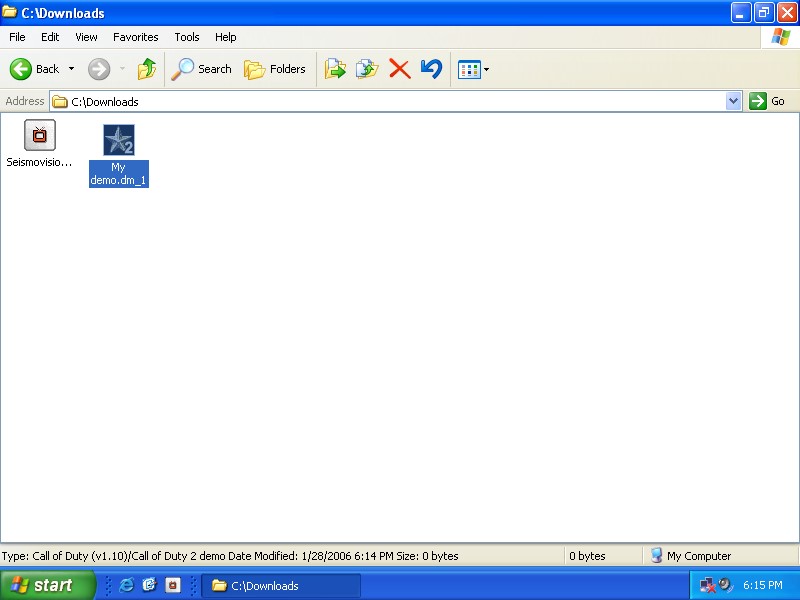
Double-click on your demo and Seismovision will play your demo. With Call of Duty 2 demos, your demo play will not end automatically. After the demo has completed playing, you will be dropped the main menu of Call of Duty 2. Exit the game. Seismovision now cleans up. Congratulations on playing your first demo with Seismovision 3.